
Most remote jobs are won or lost on video. The good news: the technical part is fully in your control, and a calm setup lets you focus on the answers. This article covers camera, light and sound, how to come across well on screen, and how recorded one-way interviews work.
The setup checklist
Interviewers for remote roles often read your video setup as a preview of how you’ll show up to meetings. You don’t need expensive gear – a laptop camera, a window and a quiet room are enough. The broader hiring process is described in applying for remote jobs in Canada.
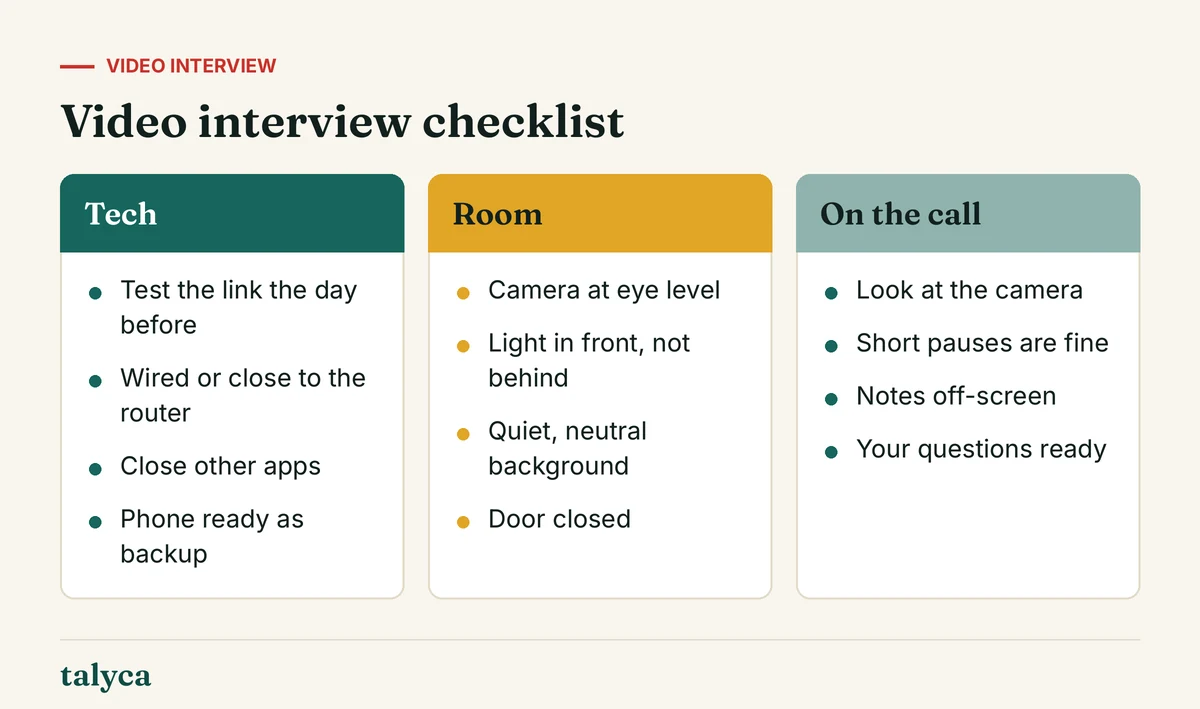
Camera, light and sound
Camera
Raise the laptop so the camera is at eye level – a stack of books works. Sit far enough back that your head and shoulders fill the frame, with a little space above your head. Clean the lens.
Light
Face a window or put a lamp behind your screen. Light from behind turns you into a silhouette. Avoid overhead light alone, which casts shadows under the eyes.
Sound
Sound matters more than image. Wired earphones with a microphone usually sound better than a laptop’s built-in mic, and a headset is ideal – especially for support roles, where interviewers may judge your call quality. Turn off fans and notifications; tell your household when you’re on.
Rehearse once: record yourself answering one question with the platform’s own recording function, or call a friend. Five minutes of playback shows problems you won’t notice live.
Coming across well on screen
- Look at the camera when you speak, at the screen when you listen. Moving the video window right under the camera helps.
- Pause briefly before answering. Video lag makes interruptions common; a short pause avoids talking over each other.
- Keep notes off-screen – a sticky note beside the camera with keywords, not a script.
- Dress as for an in-person interview at that company, including what’s below the desk, in case you need to stand up.
- Keep answers to one or two minutes and check in: “Would you like more detail on that?”
One-way (recorded) interviews
Some employers, often those hiring many support agents, use one-way interviews: questions appear on screen and you record your answers, usually with a short preparation time and a time limit per answer. Sometimes you get one retake, sometimes none.
- Do the practice question the platform offers; it’s there for a reason.
- Use the preparation time to note two or three keywords, then answer in a clear structure – situation, action, result.
- Speak to the camera as if to a person. Smiling at a lens feels odd but reads well.
- Don’t use up the full time just because it’s there; a complete, shorter answer is better.
For typical questions and sample answers in support roles, see customer service interview questions.
If something goes wrong
Connections drop. What matters is how you handle it. Have the interviewer’s email or phone number ready, rejoin immediately, and if that fails, call or write: “My connection dropped – I can rejoin now or continue by phone.” Interviewers for remote roles have all been there; calm handling can even count in your favour.
Chat-only “interviews” aren’t interviews. If a company conducts the whole process over text in a messaging app and then makes an offer, it’s very likely a scam – see remote job scams in Canada.
Common questions
Which video platform will the interview use?
Usually Zoom, Microsoft Teams or Google Meet, or a dedicated platform for recorded interviews. The invitation says which; test that exact link beforehand.
Can I use my phone for a video interview?
It works in a pinch if it’s on a stand at eye level and connected to Wi-Fi, but a laptop is more stable and makes screen sharing easier.
Is it okay to use a virtual background?
A plain real background is better. Virtual backgrounds can flicker and distract; use a blur effect if your room is untidy.
More on this topic: our guide Applying for Remote Jobs in Canada: Resume, Cover Letter and Video Interview puts this article in context.